
GUIDE 01 · 5 STEPS
Set up your first vault.
Create a vault, draw your pattern and save your recovery words.
 STEP 01
Tap Get started.
Open Vault and tap Get started. There’s no account to create.
 STEP 02
Tap Create a vault.
Vault shows the three things you’ll do: choose a pattern, save your recovery words and add your files.
 STEP 03
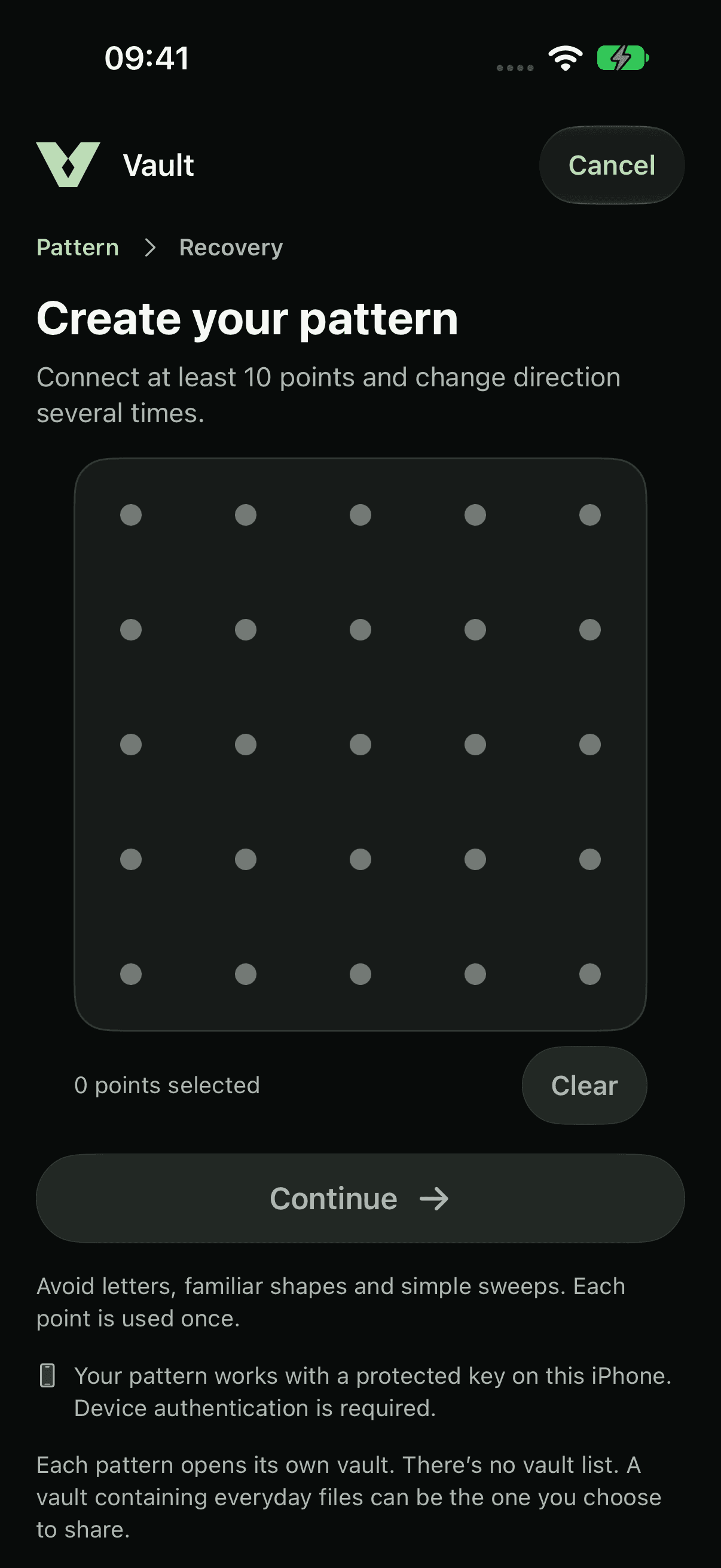
Draw your pattern.
Connect at least 10 dots, changing direction several times. Avoid letters and familiar shapes. Tap Continue, then draw it again to confirm.
Your words appear only during setup, so they aren’t shown here.
STEP 04Write down your 12 recovery words.
Write them down in order and keep them somewhere safe, away from your iPhone. Tap I’ve written down the words, then enter the words Vault asks for to check them.
 STEP 05
You’re in.
Confirm with Face ID, Touch ID or your passcode when asked. Your new vault opens, ready for your first files.
Your recovery words are the only way back in if you forget your pattern. Nobody, including us, can reset them for you.
About recovery wordsCurrent app captures with sample files. Choose iPhone 18 Pro or iPhone Duo in light or dark appearance.
LESS PUBLIC. MORE PERSONAL.
Yours.
And yours alone.

A private home for your photos,
videos and files. On your iPhone.