PRIVATE FILES. ON YOUR IPHONE.

Make yourself
at home.

Six considered steps. From your first private space to a backup you can keep independently. No account to create. Just your iPhone, your files and your choices.

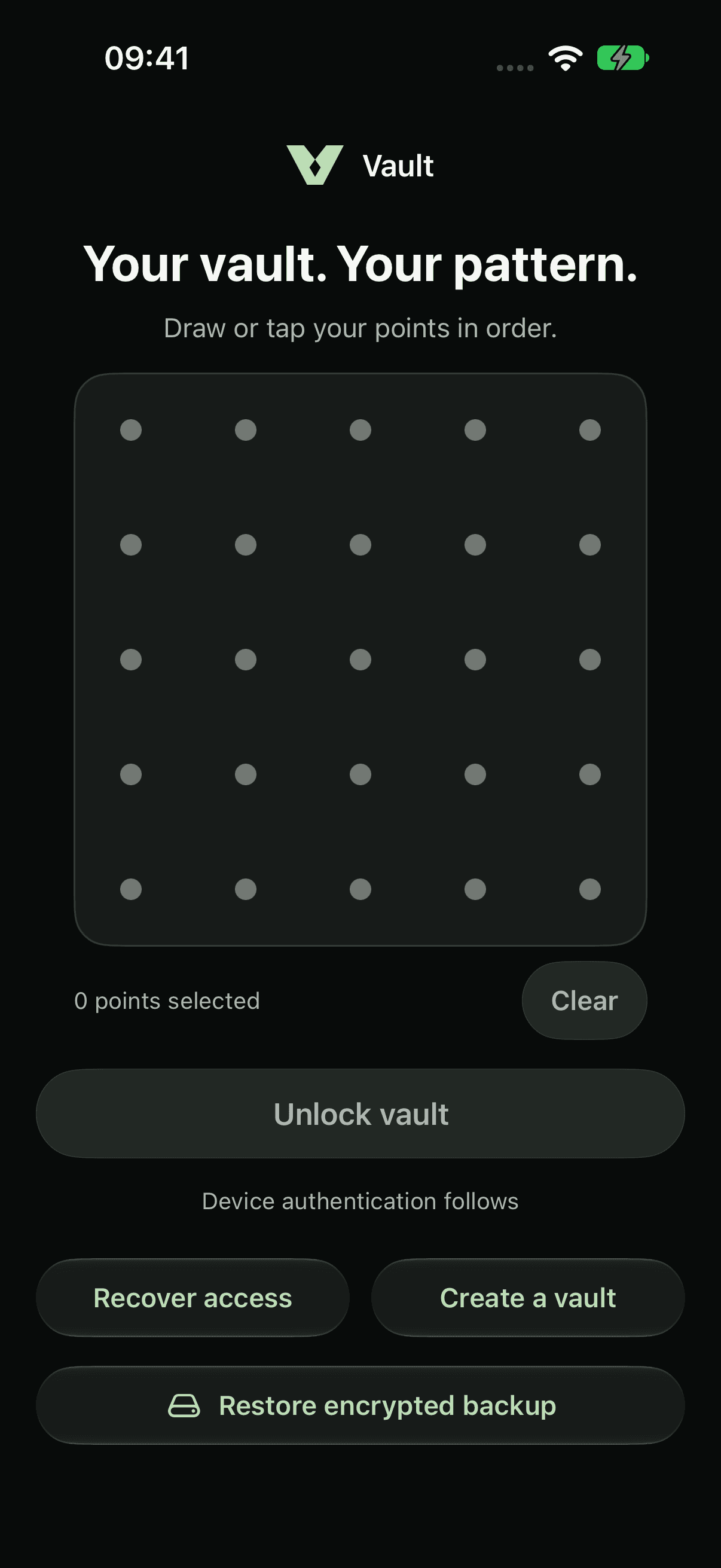
Vault pattern access screen with the dot grid, unlock action and recovery entry — iPhone 18 Pro, dark appearance
Pattern access preview
iPhone 18 Pro · dark
BEFORE YOU BEGIN

An iPhone running iOS 18 or later

A device passcode enabled

A safe place for your recovery words

STEP 01

Create your private space.

Start on an iPhone with a device passcode. Choose Create a vault, draw a pattern using at least 10 distinct points and several direction changes, then confirm it. System device authentication protects the device key.

About pattern protection
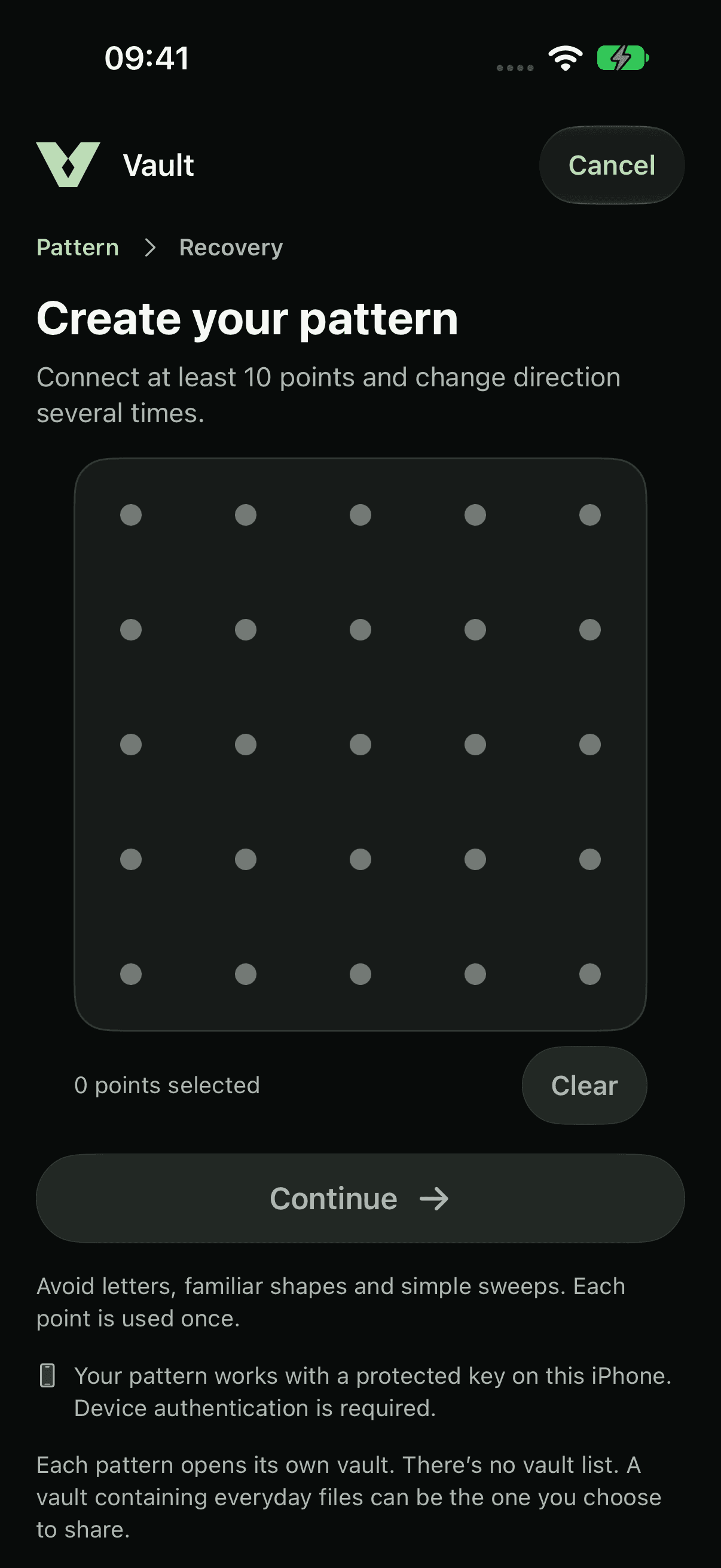
Vault pattern creation with a 5 by 5 grid and Continue control — iPhone 18 Pro, dark appearance
Create a pattern · app preview
STEP 02

Save your second way in.

Write down the 12 generated recovery words outside this iPhone, then confirm the words Vault asks for. Each vault has its own words. They unlock existing files; they cannot replace files that are missing.

Understand recovery words
STEP 03

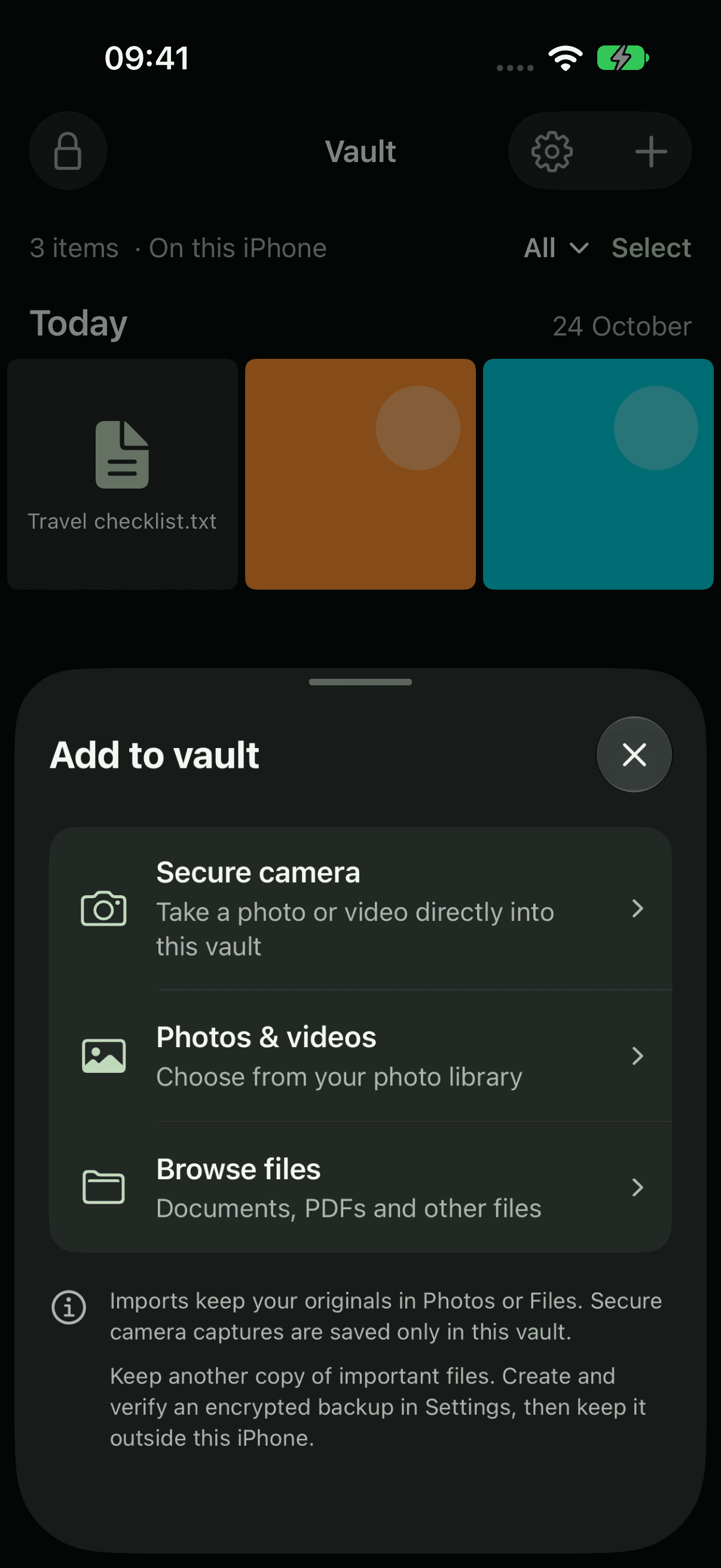
Bring your files home.

Tap Add and choose Photos & videos or Browse files. Select several items if you like. Vault encrypts its own copies and shows progress while importing. Cancelling keeps items that have already finished.

Explore importing
Vault Add to vault sheet offering Secure camera, Photos and videos, and Browse files over the library — iPhone 18 Pro, dark appearance
Add to vault · app preview
STEP 04

Find it. Open it. Make it yours.

Browse by import date, search filenames, filter categories and choose a list or grid. Preview a file or select several for export or confirmed deletion. Exported originals become readable copies at their destination.

Explore your library
STEP 05

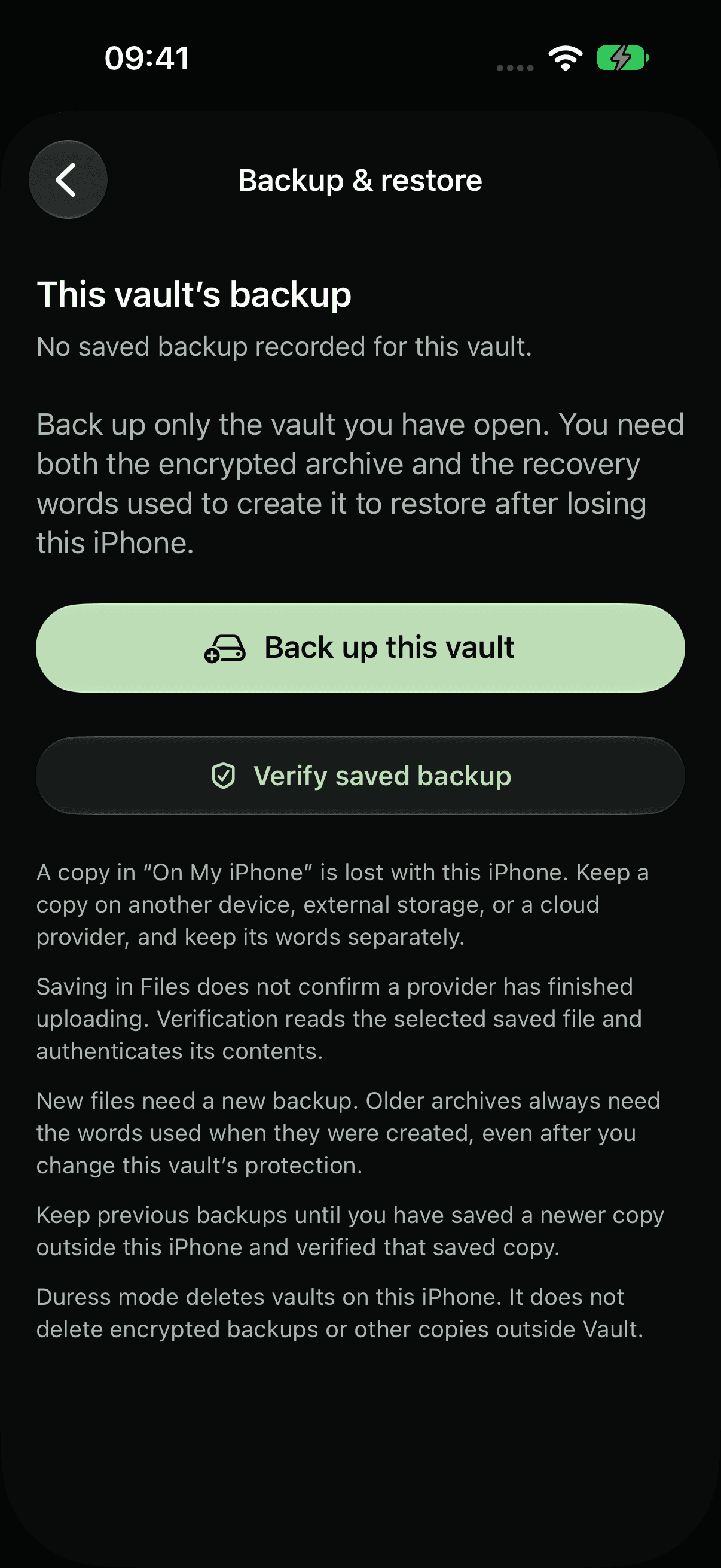
Make an independent backup.

In Settings, open Backup & restore, create an encrypted archive and save it through Files. Verify the saved copy. Keep an independent archive outside this iPhone and its matching recovery words separately. Additions after the snapshot need another backup.

Plan your backup
Vault Backup and restore screen with controls to create and verify an encrypted backup — iPhone 18 Pro, dark appearance
Backup & restore · app preview
STEP 06

Leave it locked.

Tap Lock or leave the app. A privacy cover hides inactive app windows, and reopening requires your pattern and system authentication. Use Switch vault to open a different independent space with its own pattern.

About automatic lock

WHEN PLANS CHANGE

There’s a difference
between access and a copy.

01 / FORGOTTEN PATTERN

The files are still here.

Choose Recover access, enter that vault’s matching words, then confirm a replacement pattern and new recovery words.

Recover access
02 / A SAVED SNAPSHOT

Restore an encrypted backup.

Select the archive and enter the words used when it was made. Restore creates a new vault with fresh keys and preserves existing vaults.

Understand restore
03 / NO FILES OR BACKUP

Words cannot recreate files.

Recovery words alone cannot restore missing or deleted files. Keep originals and an independently stored, verified encrypted backup.

Make a backup plan
KEEP EXPLORING

See what’s behind the privacy.

The encryption, the access protection, and the boundaries worth understanding.

LESS PUBLIC. MORE PERSONAL.

Yours.
And yours alone.

A private home for your photos,
videos and files. On your iPhone.

Meet your VaultAvailable on the App Store.