
GUIDE 02 · 4 STEPS
Add and find your files.
Bring in photos, videos and documents, then find them again.
 STEP 01
Tap Add.
In your vault, tap Add at the bottom right.
 STEP 02
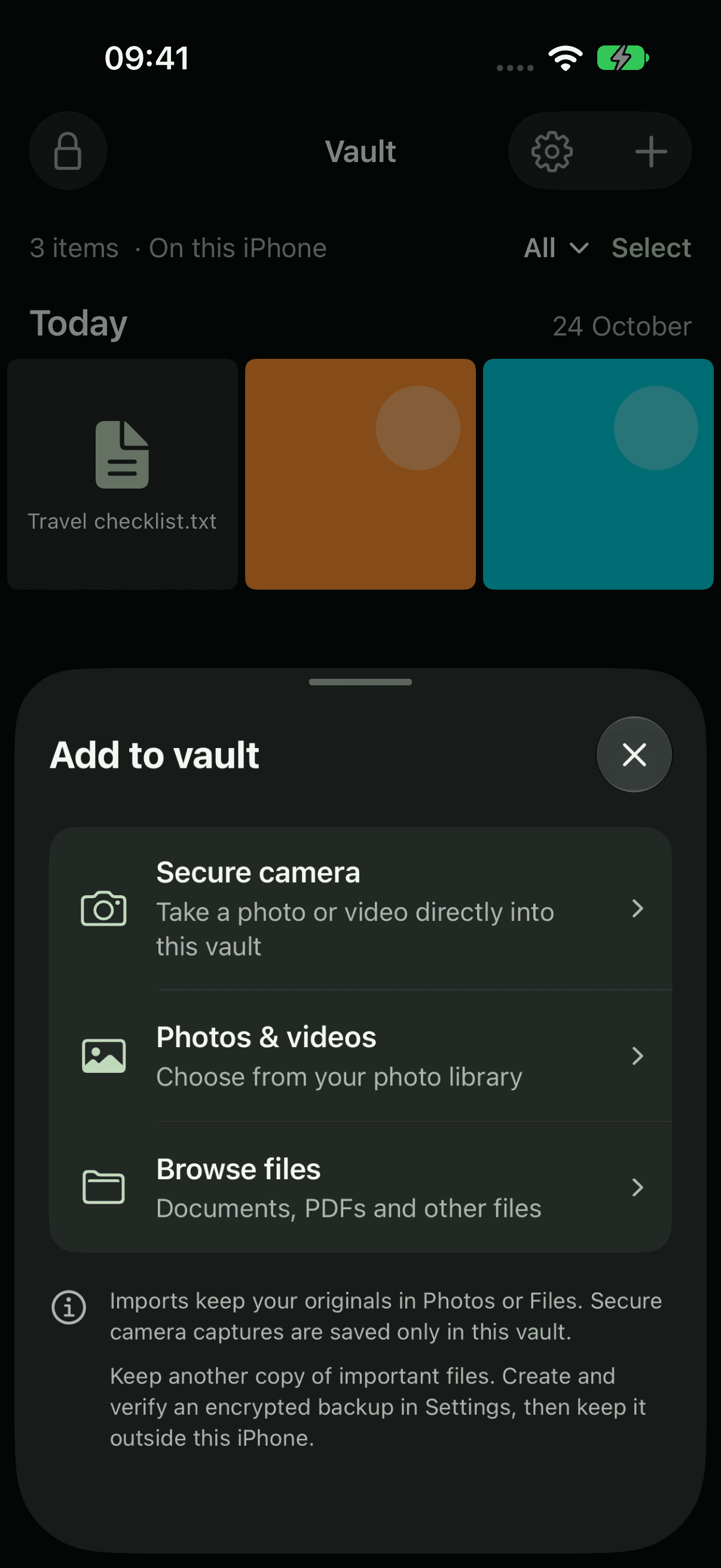
Choose where from.
Pick Photos & videos for your photo library, or Browse files for documents and PDFs. You can select several at once. Your originals stay where they are.
 STEP 03
Watch it encrypt.
Vault shows its progress as it encrypts each file. Tap Cancel to stop. Files that have already finished stay in your vault.
 STEP 04
Find it again.
Tap the search button and type part of a filename. Use View to switch between grid and list, and All to show one type of file.
Vault keeps an encrypted copy. If you want the original gone from Photos or Files, delete it there yourself.
About importingCurrent app captures with sample files. Choose iPhone 18 Pro or iPhone Duo in light or dark appearance.
LESS PUBLIC. MORE PERSONAL.
Yours.
And yours alone.

A private home for your photos,
videos and files. On your iPhone.