
GUIDE 04 · 3 STEPS
Lock and open your vault.
Lock your vault, open it again, and get back in if you forget your pattern.
 STEP 01
Tap the padlock.
Tap the padlock at the top left to lock your vault. It also locks by itself whenever you leave the app.
 STEP 02
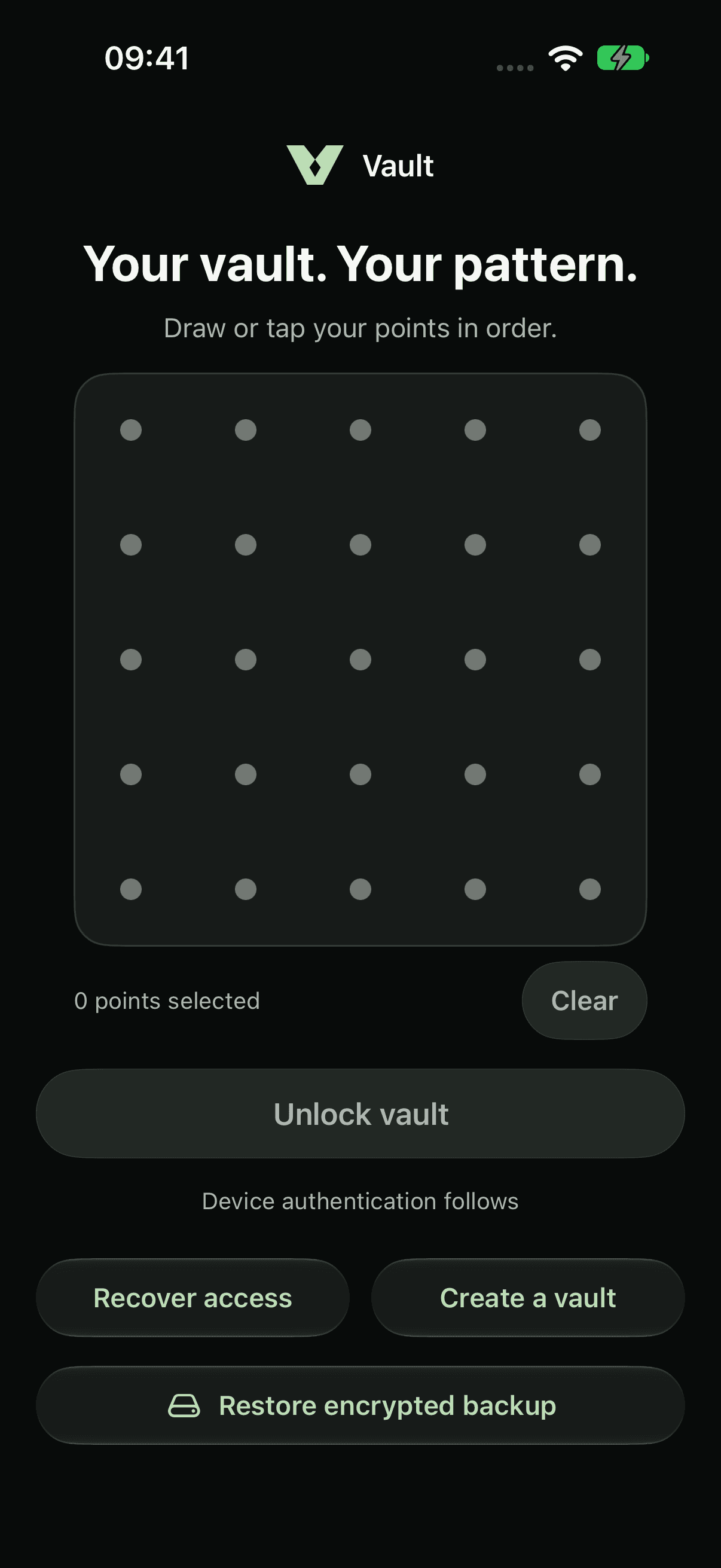
Draw your pattern.
Draw your pattern, tap Unlock vault, then confirm with Face ID, Touch ID or your passcode. A pattern that doesn’t match a vault shows an empty screen and changes nothing.
 STEP 03
Forgot your pattern?
Tap Recover access and enter that vault’s 12 recovery words. You’ll then choose a new pattern and save new recovery words.
Each pattern opens its own vault. To open a different one, tap Settings and choose Switch vault, then draw that vault’s pattern.
About pattern protectionCurrent app captures with sample files. Choose iPhone 18 Pro or iPhone Duo in light or dark appearance.
LESS PUBLIC. MORE PERSONAL.
Yours.
And yours alone.

A private home for your photos,
videos and files. On your iPhone.