
GUIDE 05 · 4 STEPS
Back up and restore.
Save an encrypted copy of a vault and bring it back on any iPhone.
 STEP 01
Open backup settings.
Open the vault you want to back up and tap Settings (the gear icon). Under Backup & restore, choose Encrypted backup.
 STEP 02
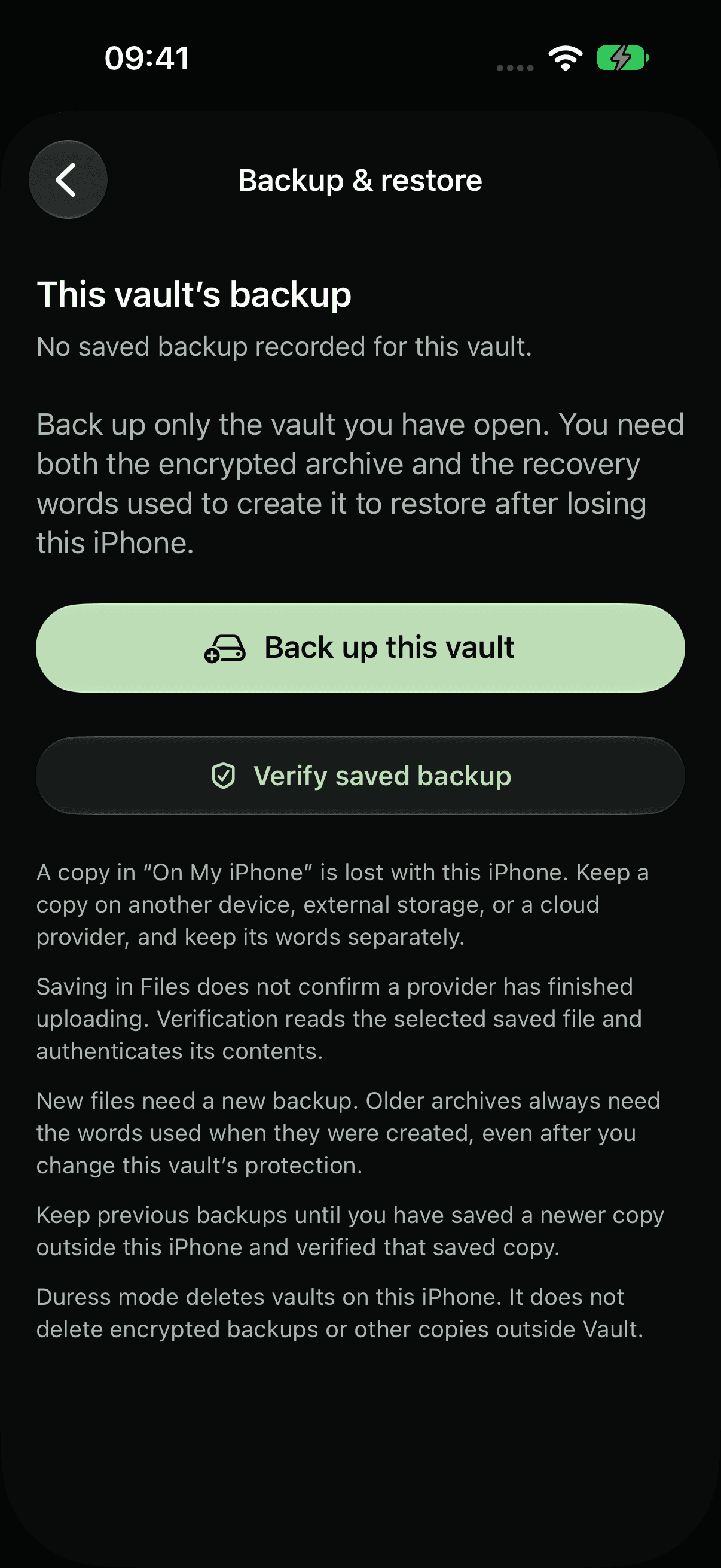
Back up, then verify.
Tap Back up this vault, enter its recovery words and save the file in Files, somewhere other than this iPhone. Then tap Verify saved backup and choose the file you saved.
 STEP 03
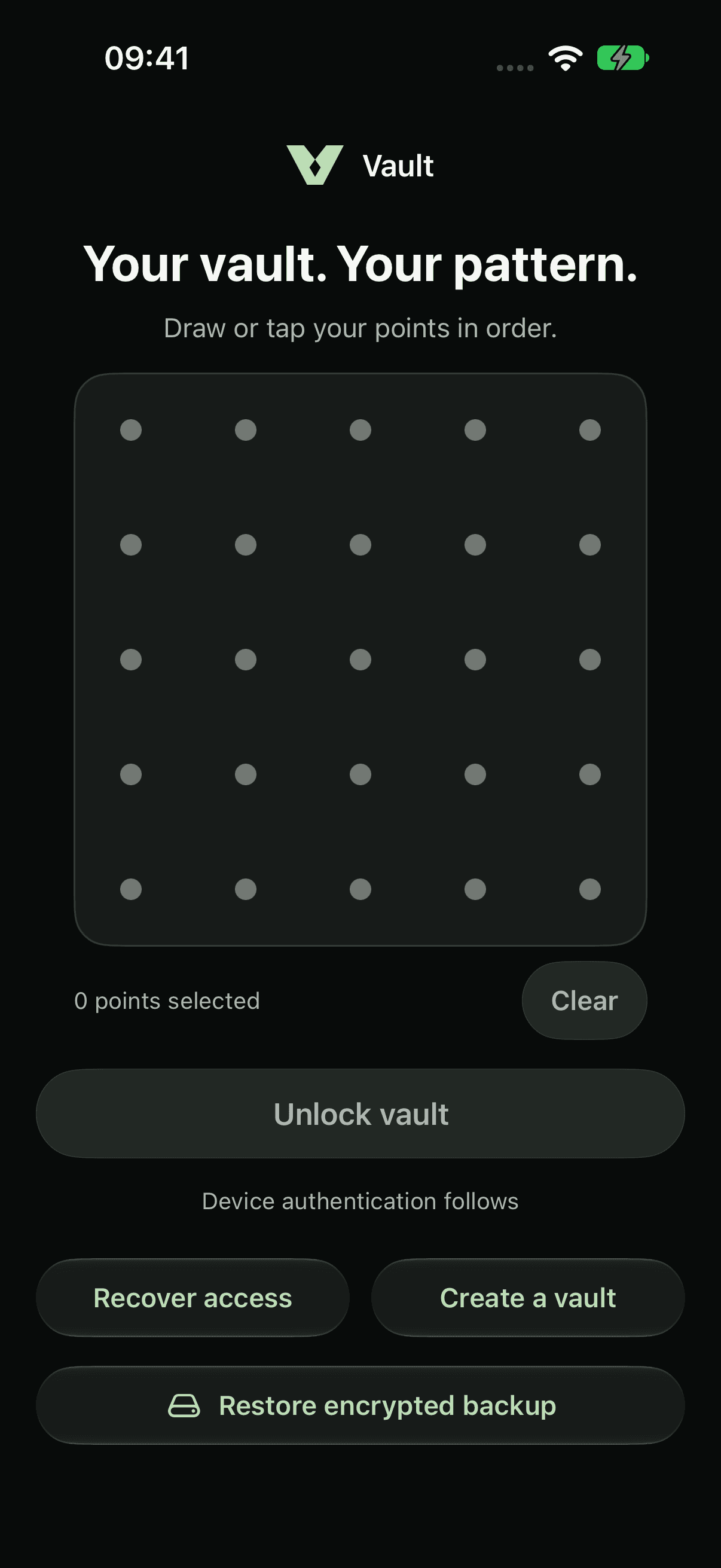
Restore on any iPhone.
On the lock screen, tap Restore encrypted backup. On a new install, tap Open an existing vault first. Choose your backup and enter the recovery words you used when you made it.
 STEP 04
Restore into a fresh vault.
Choose a new pattern and save new recovery words. Your files return as a new vault, and any vaults already on the iPhone are kept.
A backup only includes the files in the vault when you made it. Back up again after adding files.
About encrypted backupsCurrent app captures with sample files. Choose iPhone 18 Pro or iPhone Duo in light or dark appearance.
LESS PUBLIC. MORE PERSONAL.
Yours.
And yours alone.

A private home for your photos,
videos and files. On your iPhone.