
GUIDE 06 · 5 STEPS
Use duress mode.
Arm a vault you’re willing to show, so opening it removes your other vaults.
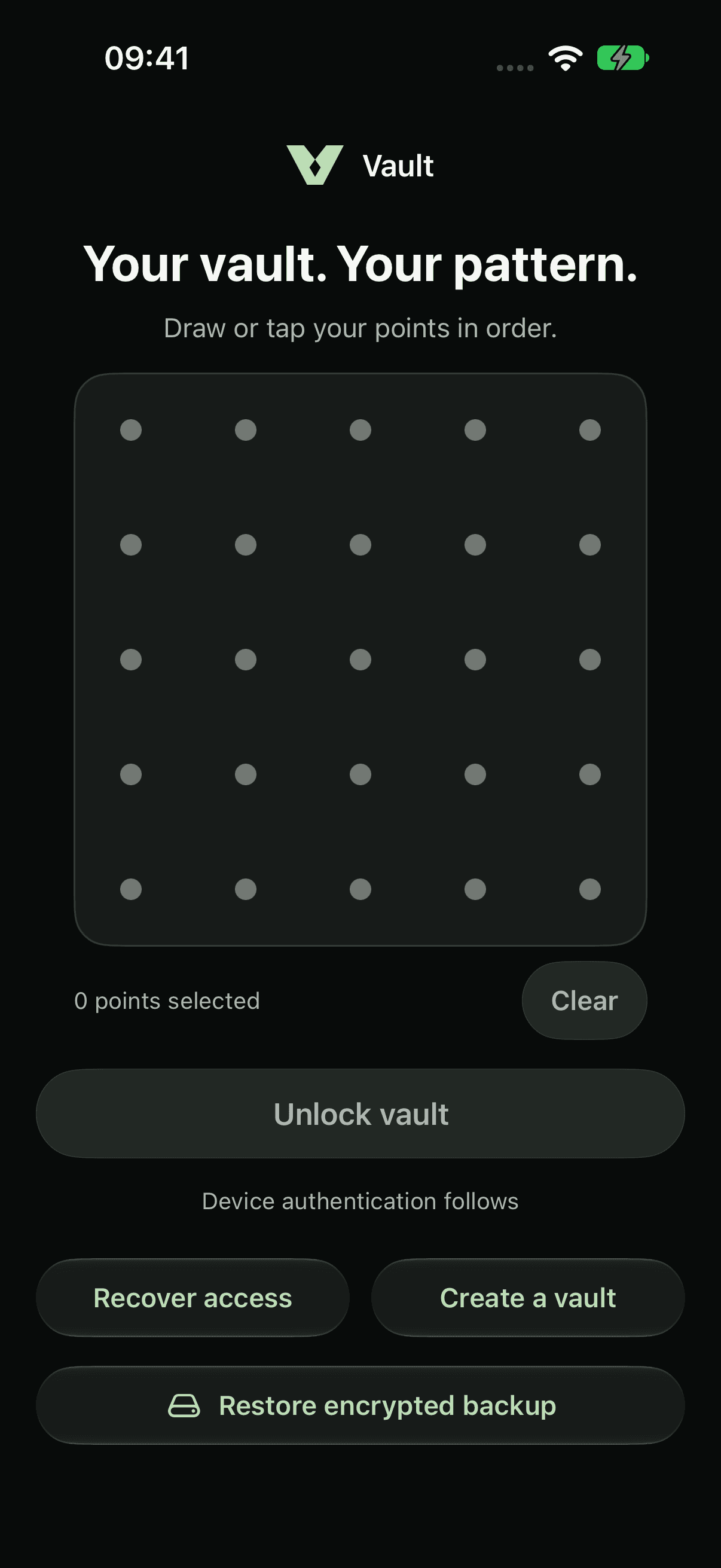 STEP 01
Open the vault you’d show.
Draw the pattern for a vault you’d be comfortable showing someone, such as an everyday decoy vault. This is the vault that will be kept.
 STEP 02
Open settings.
Tap Settings (the gear icon).
 STEP 03
Tap Set up duress mode.
Under Duress mode, tap Set up duress mode. Read the warning, then tap Arm duress mode. Nothing is deleted yet. Only one vault can be armed at a time.
Every other vault on this iPhone is permanently deleted.
STEP 04Know what happens next.
The next time this vault is opened with its pattern, Vault deletes every other vault on this iPhone without any warning, then opens this one as normal. It works once, then turns itself off. Opening with recovery words doesn’t trigger it.
Turn off duress mode
STEP 05Changed your mind?
While this vault is still open, tap Settings and then Turn off duress mode. Do this before you lock it, because the next pattern unlock will delete your other vaults.
Recovery words alone can’t bring deleted vaults back. Before arming duress mode, back up your other vaults and keep those backups somewhere other than this iPhone.
About duress modeCurrent app captures with sample files. Choose iPhone 18 Pro or iPhone Duo in light or dark appearance.
LESS PUBLIC. MORE PERSONAL.
Yours.
And yours alone.

A private home for your photos,
videos and files. On your iPhone.